 BiteMemo
How to try it
- Update BiteMemo from the App Store.
- Open the camera and choose Gallery, Barcode, Snap, or Describe.
- Wait for “Added to diary,” then open the entry if you want to review or edit it.
Nutrition values from photos and descriptions are estimates and can be edited.
Here is what changed, how to use it, and where you can find it.
Choose how to add your food
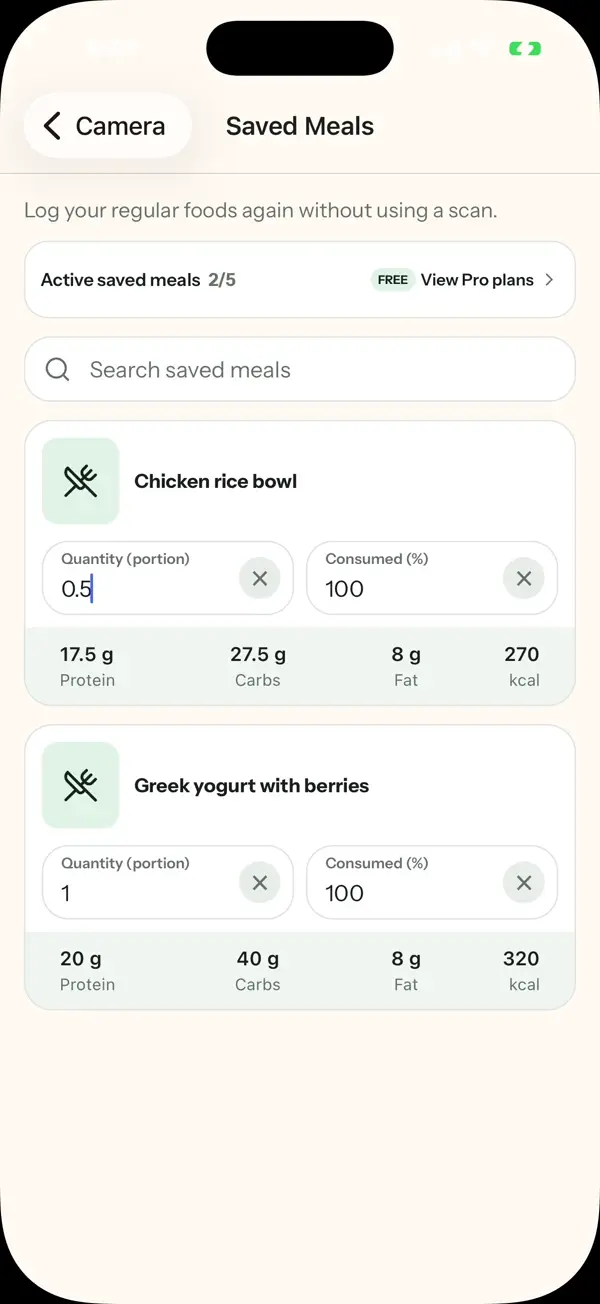
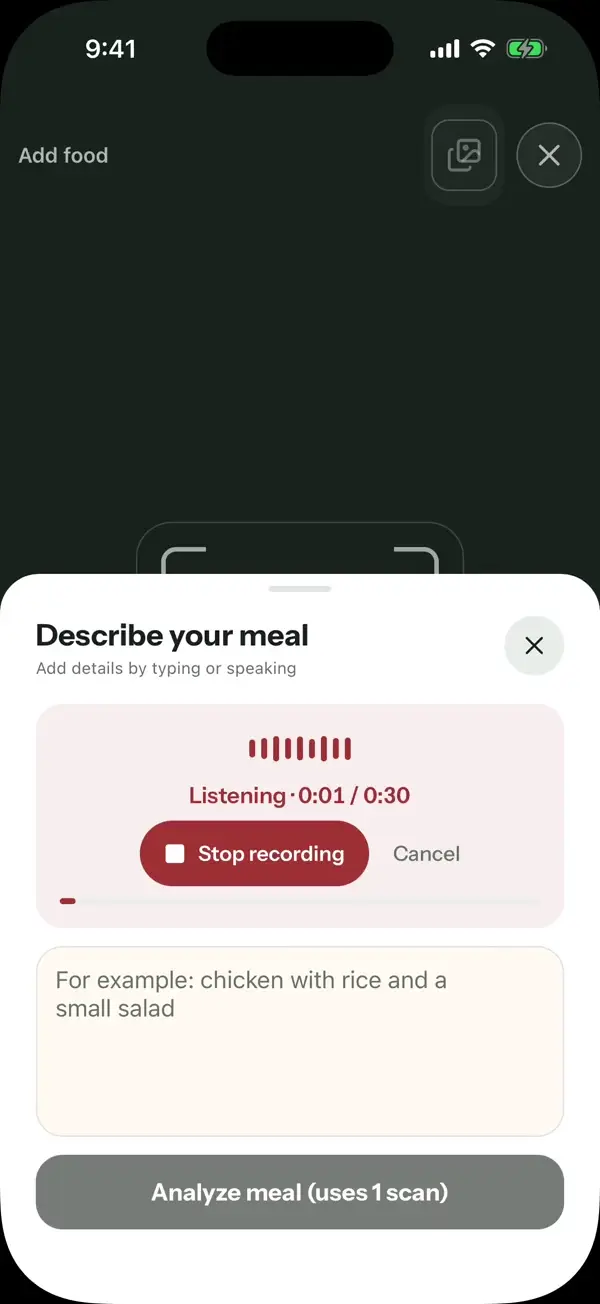
The camera brings Gallery, Barcode, Snap, and Describe into one consistent row. Snap returns to photo mode without taking a picture. Barcode switches to automatic scanning, while Gallery and Describe let you use a saved image or type what you ate.
Keep adding without losing your place
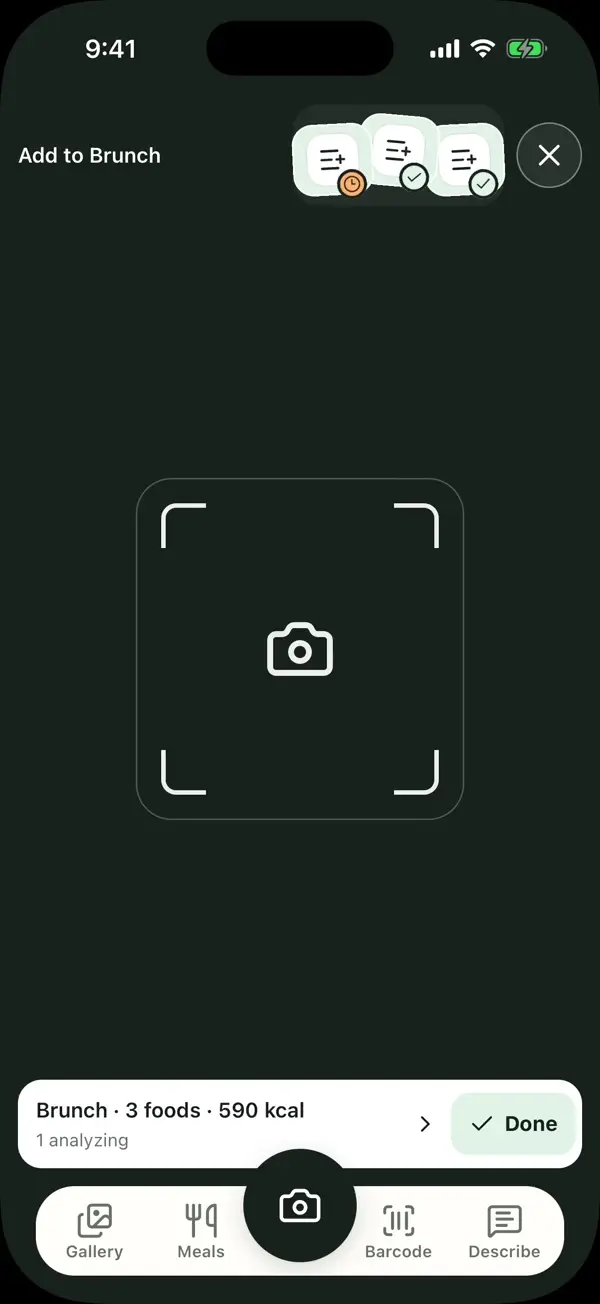
After you submit a photo or description, BiteMemo keeps the capture session available. Food previews show what is already in progress, so you can add another item or open a result when it is ready.
Know when it reached your diary
“Added to diary” appears only after nutrition has been saved. A completed upload alone is not shown as success, and a failed analysis never receives the confirmation.
Ready when you are.
iOS 1.0.5+ · 2026-09-17